
Segmenting Tracked Email Statistics Using Categories
You can use categories for your own tasks, but on this page, for clarity, we'll look at this example: let's say you send commercial proposals and other emails. With categories, you can see read and link click statistics specifically for sent commercial proposals.
To get statistics on commercial proposals, you will need to:
- Assign a special category for the email being sent or previously sent email
- Go to summary statistics and filter the data
If you do not plan to use category segmentation, you can disable the category input fields, and they will not appear in the mail interface. To disable, follow the instructions.
How to Set a Category for an Email Being Sent?
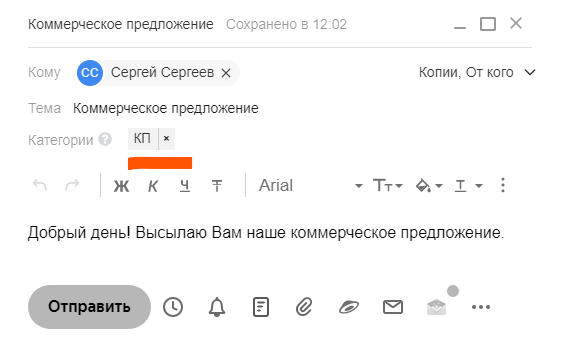
To set a category, open the email editor. TraksPaks adds a new field to the editor where you can enter your category name. The category name can be anything, but for our commercial proposals, we'll use the category "CP". You can even specify multiple categories if needed.
How to Set a Category for a Previously Sent Email?
To set a category for a previously sent email, go to the "Sent" folder, hover over the TraksPaks check mark for a specific email, and set the category in the popup window.

For convenience, after setting categories for emails, a small letter "c" is shown next to the check mark.

How to Filter Emails by Category in Reports?
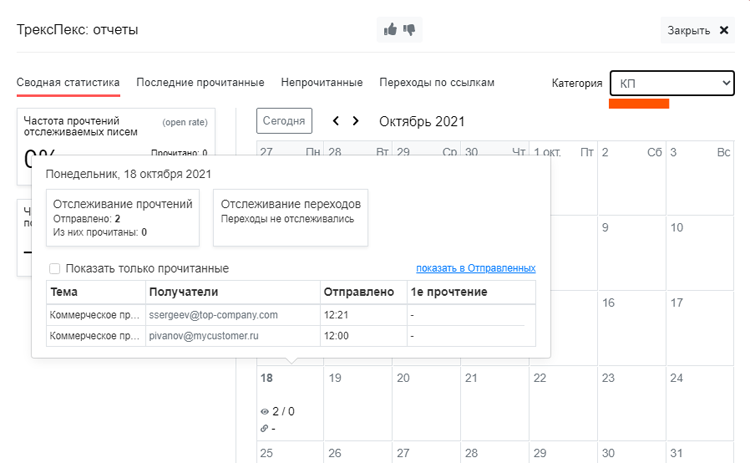
To filter emails, go to "Summary Statistics" and select the category in the upper right corner to view the statistics data.
Enabling/Disabling Category Input Fields
To disable category input fields, go to Menu > Settings, uncheck the corresponding box, and save changes. After that, the category input fields will not appear in the mail interface.
To enable, go to Settings, check the corresponding box, and save changes.